Movicon.NExT Help on Line - Rel. 4.3
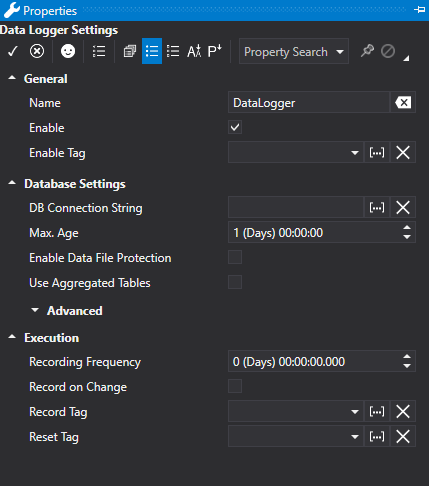
Each Data Logger defined in the project manages a data recording model to which the desired Tags are to be associated. Data recordings can be executed:
timed
on command
according to the properties that have been configured as described below.
General
Name:
Arbitrary name to associate to DataLogger.
Enable
This option box allows you to enable the Data Logger in design mode if disabled (False). In this case, the Server will ignore all disabled Data Loggers (as if they didn't exist) after which it will not be possible to enable them to function during runtime.
This option is enabled for default (True), therefore the Data Logger results as enabled.
Enable Reording Tag
This field is used to enter the name of the Server Tag to be used at runtime for enabling the Datalogger recording. This Tag is taken into consideration only when the Data Logger's "Enable" property has been enabled.
If the "Enable Tag" is set to the "zero" value at runtime, the Data Logger will be disabled and all the Tags connected to it will no longer be recorded, regardless of which recording mode has been activated (on command, time or change). However, when the "Enable Tag” is set to a value other than zero (e.g.“True”, “1”, “100”, “-10”, etc.), the Data Logger will result enabled and the Tags connected to it will be recorded to the set recording mode.
|
“String” or “Array” tags are not supported as Data Logger "Enable Tags". If one of these tags is inserted, a warning message will be issued in the Server Log at startup and the DataLogger will ignore the "Enable Tag" property at runtime and will result enabled for recording. |
Execution
Recording Frequency
This field is used for specifying the time value (dd:h:m:sec) to determine data recording frequency.
|
Values higher than 49 dd are not supported. If values higher than 49 dd are entered, the editor will issue a warning that the entered value is not allowed. |
Record on Change
This field is used to enable recording upon the change of at least one of the Tags associated to the Data Logger.
This functionality can also be activated in conjunction with the use of the "Recording Tag" and the "Recording Frequency" fields. When a data Logger has been associated multiple tags, one or more of them can be excluded from the change evaluation by using the "Skip Data Change" property which is available in each Data Logger Tag. For further details please see the topic on "Associating Tags to Dataloggers".
Hysteresis Time
This field is only available if you enable the "Record on Change" option.
It allows you to specify a time interval, starting from the first variation that occurred, during which any variation of other variables is expected in order to concentrate different variations in a single recording.
The hysteresis time is not considered if the change in value is related to the same Tag, i.e. each change in the same Tag will produce a new registration.
Record Tag
This field is used to insert the name of a Server tag to be used at runtime to execute Data Logger recordings. However, this Tag is only taken into consideration when the Data Logger's 'Enabled' property has been enabled and that the 'Enabled Tag' property be set to a value different from zero if inserted.
If the 'Recording Tag' is set to a value that is different from zero during runtime (e.g. “True”, “1”, “100”, “-10”, etc.), the Data Logger will automatically reset the Tag to zero after recording it.
|
'String' or 'Array' variable types are not supported as Data Logger 'Recording Tags'. If one of these unsupported variables is inserted, a warning message will show in the Server log at startup and the Data Logger will ignore the 'Recording Tag' at runtime. |
Reset Tag
This field is used to insert a Tag name of the Server to be used at runtime to reset data in the Data Logger table. This Tag is only taken into consideration when the Data Logger's 'Enabled' property has been enabled. Any 'Enabled Tag' setting will not influence the reset command which will be executed regardlessly.
If the "Reset Tag" is set to a value that is not zero at runtime (e.g. “True”, “1”, “100”, “-10”, etc.) the Data Logger will send a command to remove all the data recorded in the table up to that moment. Once this has been done, the Tag will be reset to zero automatically by the Historian.
|
Attention! The “Reset Tag” is reset to zero after the Data Logger has sent the Reset command. However, this does not mean that the Reset operation has terminated. The time needed to remove data may take from a few seconds to a few minutes according to how many records must be removed. |
|
'String' or 'Array' variable types are not supported as Data Logger 'Resetting Tags'. If one of these unsupported variables is inserted, a warning message will show in the Server log at startup and the Data Logger will ignore the 'Resetting Tag' at runtime. |
Quality Check
This property allows the recording of data to be enabled in three different situations:
QualityCheckType_Any (default value for this property): Always records regardless of what quality the variables are.
QualityCheckType_AllGood: Records all those variables that have Good Quality.
QualityCheckType_AtLeastOneGood: Records when at least one variable has Good Quality.
|
When structure or an array variable types are connected to the Data Logger, they will be considered as one element by the DL and as a consequence they will only obtain a good quality when all their members are likewise.
|
Database Settings
Max. Age
This field is used to set the max. time that data can be kept on Database before being eliminated. Data that is older than the value set in this field, in respect to the actual time and date, will be eliminated from the database. The Max. Age of data is always checked when new records are stored.
|
By setting to "0 (Days) 00:00:00", the overwriting of the new data on the old will not be performed. |
Enable Data File Protection
This field is used to choose whether to protect audit recordings from tampering, unintentional or intentional modification of any kind. This is done by inserting an encrypted data colomn in the UFUAAuditDataItem object. The information contained within this column will impede any mishandling of sensible data recordings without compromising data integrity.
Use Aggregated Tables
Permits the viewing of heightened time periods for frequently sampled data.
When enabled, the stored data procedure produces these tables:
<DL table name>_MI for aggregation every minute;
<DL table name>_HH for hourly aggregation;
<DL table name>_DD for daily aggregation.
For each numeric column; the columns will be created in the aggregated tables with the _MIN, _MAX, _AVG suffix respectively .
MIN: minimum value reached within the time range in question
MAX: maximum value reached within the time range in question
AVG: average value obtained within the time range in question
Criteria used by tables aggregated by the data analysis:
10 min-> MI
720 min-> HH
14400 min-> DD
This means that data will be taken from the [DataloggerName]_DD table when exceeding 10 days of extractions; when exceeding 12 hours of extractions (but within 10 days) data will be taken from the [NomeDatalogger]_HH; when exceeding 10 minutes of extractions (but within 12hours), data will be taken from the [DataloggerName]_MI; when below 10 minutes of extractions, data will be taken from the [DataloggerName] (the standard DataLogger table).
Table Name (Advanced)
The name of the table to use for recording data in is specified in this field. When this field is left blank, the name of the DataLogger set in the "Name" will be used.
UTC Time column Name (Advanced)
The name of the column relating to the data in UTC format. The default name will be used when left empty.
|
If an error should occur while inserting a record, other attempts will be made by using the time interval set in the "Retry wait time" property between each attempt until the number of attempts indicated in the "Max Errors" has been reached. When the number of retries set in the "Max Errors" has been reached, data will be flushed to the xml file indicated in the "Flush path". |
|
When an already existing DataLogger column is renamed, a new column will be created in the table with the new name and the old column will remain untouched. |
Local Time Column Name (Advanced)
This field is used for specifying the name of the column relating to the data in Local format. When this field is left blank, the default name will be used instead.
MSec Column Name (Advanced)
This field is used for entering the name of the column relating to the recording time's milliseconds detail. The default name will be used when this field is left empty.
User Column Name (Advanced)
This field is used for specifying the name of the column relating to the user (user who activated recording command). When this field is left blank, the default name will be used instead.
Reason Column Name (Advanced)
This field is used for specifying the name of the column relating to the information on what caused the value to change. The default name will be used when this field is left empty.
DB Connection String
The "DB Connection String" allows you to define a specific database connection for each Datalogger.
When no DB connection is defined, the DataLogger will use the one set for default in the Server's "Historian Default Connection" general property.
For further information, please refer to the paragraph on ".NET Framework Provider connection strings (Datalogger)" from the "database connections" topic.
Max. String Size (Advanced)
This field is used to enter the maximum length value of a string to be recorded in the DataBase.
Max. Transactions (Advanced)
This field is used to define the maximum number of aggregated operations at one time. In cases with quick recording bit triggers, 10 entries can be performed in a single transaction.
Max. Errors (Advanced)
This field is used to define the maximum number of errors before flushing.
Retry Wait Time (Advanced)
This field is used to define the time after which an attempt will be made to perform the operation in the event of an error.
Max. Cache Size (Advanced)
This field is used to defining the Cache size after which the data will be flushed to file.
|
If an error should occur while inserting a record, further attempts will be made by using the time interval set in the "Retry wait time" property between each attempt until the number of attempts indicated in the "Max Errors" has been reached. When the number of retries set in the "Max Errors" has been reached, data will be flushed to the xml file indicated in the "Flush path". |
|
In cases where an already existing DataLogger column is renamed, a new column will be created in the table with the new name and the old column will be left untouched. |
Allow Duplicated Rows (Advanced)
Allows the recording of Data Records with the same Time Data.
Skip Check Columns Type (Advanced)
This is set false for default. When set true, the DataLoggers columns and tag types implemented at runtime will be checked for consistency.


