Movicon.NExT Help on Line - Rel. 4.2.359
Each graphical element (objects from the Toolbox or Symbols from the Symbol Library) can be associated with a Tag. This Tag will be considered as the reference Tag for each associated function (such as Commands and Animations) when not specified otherwise with a specific Tag for a specific function of the object.
Assigning Techniques
Assigning the Tag to a graphic object can be done using different techniques as described below.
Assigning tags with Drag and Drop
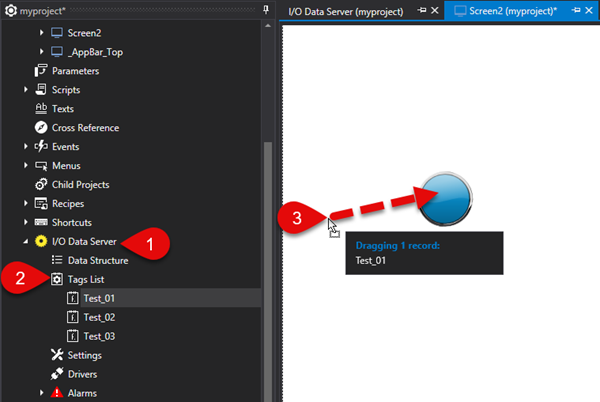
Tags can be assigned to object by simply dragging the Tag to the actual object using the Drag&Drop techniques.
This procedure is as follows:
This will automatically assign the Tag to the object after which it will be possible to set its properties.
Assigning Tags using contextual menu
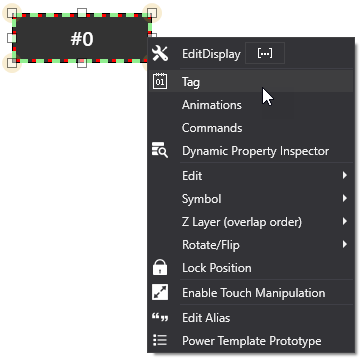
Tags can be assigned to objects by calling the contextual menu and selecting the Tag item.
This will open the Tag Explorer Window from which to select the Tag.
Assigning Tags using the Properties Window
Tags can be assigned to objects by using the property window and selecting the Tag item.
A Tag Explorer Window will open to select the Tag.
Assigning Tags using rapid commands
Tags can be assigned to objects by pressing down the SHIFT key while double clicking on the object.
This will open a Tag Explorer Window to select the Tag.
TAG Explorer Window
Once opened, the "Tag Explorer Window" presents four tabs from which to select the desired tag to associate to the object.
Each tab presents a different variable typology:
I/O Data Server
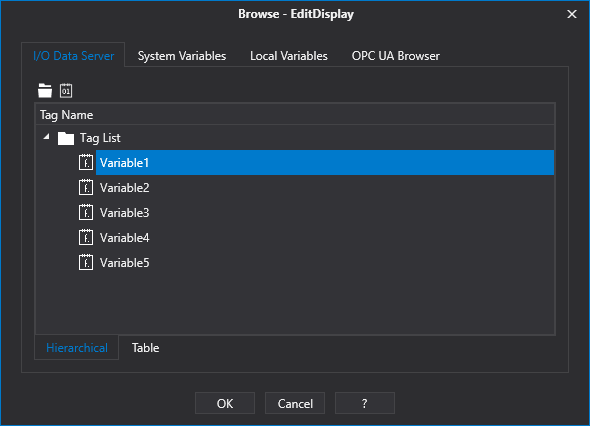
The first tab reports the list of Tags defined in the project's I/O Data Server.
|
In this context it is also possible to perform Tag editing operations to add new tags or folders or change, delete and remove existing ones. |
System Variables
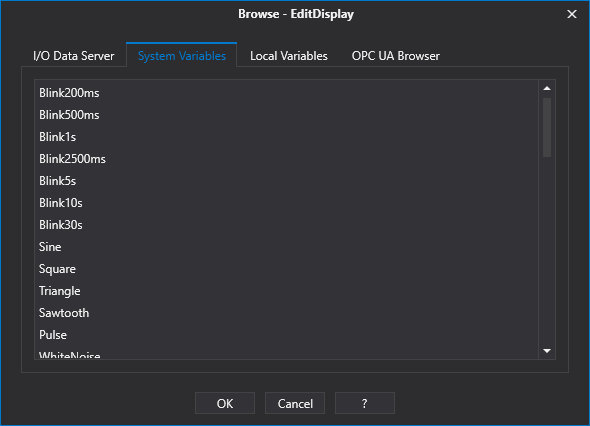
The second tab reports a list of the Client's "System Variables" that allow you to obtain system information or simulation curves (see paragraph: "Client System Variables").
Local Variables
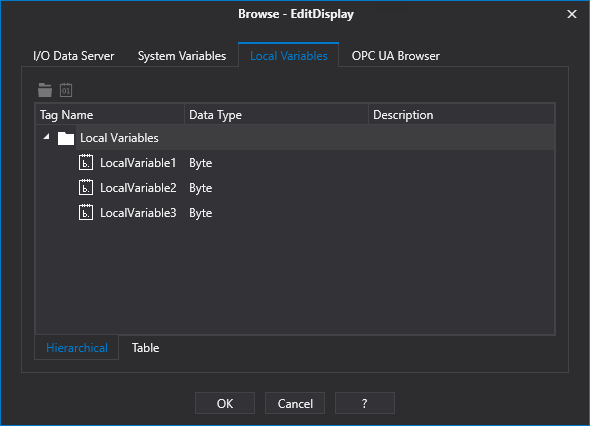
The third tab reports the "Local Client variables" which are those variables that have been defined at Client level.
(see paragraph "Local Client Variables").
|
In this context it is also possible to perform Tag editing operations to add new tags or folders or change, delete and remove existing ones.
|
OPC UA Browser
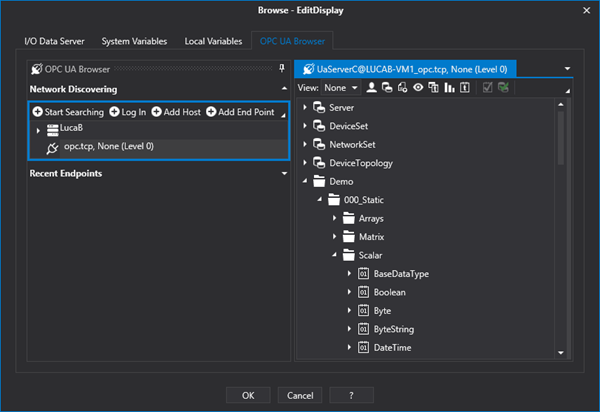
The third tab called "OPC UA Browser" allows you to go and select a tag exposed by OPC UA Servers that are present in network.
For further information on how to used the "OPC UA Browser" commands, please refer to the paragraph on "OPC UA Browser Window"
that uses the same functionality.
|
As the Movicon.NExT I/O Data Server is a OPC UA Server, the OPC UA Browser can also be used to select variables from the project's I/O Data Server which should be running. |