Movicon.NExT Help on Line - Rel. 4.3
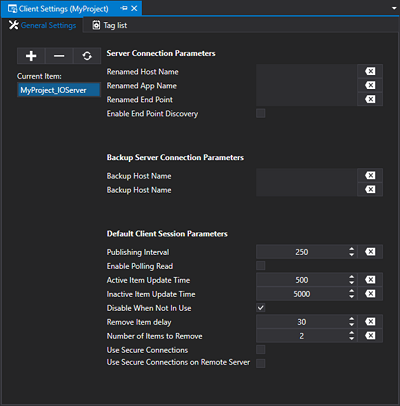
This settings window can be accessed through the "Client Configuration > Client Settings" resource from the project tree and allows you to define the Client's connection parameters towards the Server.
It is also possible to redefine connection parameters such as the name of the Server to connect to or the name of the Application if renamed.
Server Connection Parameters
Renamed Host Name
This parameter consents the name of the Server, which the Client is to connect to, to be entered here. It will be used when the Server is remote, meaning that when the Client and Server are running on different machines. At runtime, the client's connection endpoint will be automatically be redefined by substituting the “localhost” with the name of the Server indicated in this parameter.
|
The substitution of the Server name will only be done correctly if the project's default endpoint has been left set with the Server name of "localhost". |
|
IP address usage is not supported. You will need to specify the server's hostname. If a DNS server is not present in net, you can modify the Windows "hosts" file. |
Renamed App Name
This parameter is used when changing the Project's Application Name after having already assigned Tags. In the condition, the new Application Name is entered here, while the name of the name of the set of parameters being edited should have the old Application Name. In this way, at runtime, the connection endpoint to the Server will be redefined by substituting the old Application Name with the new one.
Please refer to information on "Renamed App Name" in this page
Scheduler Server
In cases where the client needs to provide the use of schedulers, you will need to configure an dedicated app name as follows:
Click the '+' icon to add a new AppName;
Set the AppName with the name found in the Scheduler Server's "Appliclation Name" property;
Set the "Renamed Host Name" property with the name of the PC in which the Movicon.NExT Server project is running.
Renamed End point
This field is used to define the whole endpoint that the Client should use to connect to the Server. In this case, the “Server Hostname Server” and “Application Name” parameters will no longer be necessary and ignored. An example of an endpoint to enter would be:
net.tcp://ServerName:62846/Project1_IOServer
net.tcp://192.168.0.49:62846/Project1_IOServer
Enable End point Discovery
Enabling this option will enable the Client to connect to the Server using any one of the transports published by the Server in cases where the transport defined in the default endpoint is no longer available. Supposing for example that while in project design mode, only the “net.pipe” transport is being used but when in runtime the Server only exposes the “net.tcp” transport, the Client will not be able to connect to the Server. By enabling the "Enable Endpoint Search" option, the client will then be able to use the "net.tcp" transport to connect to the Server.
Backup Server Connection Parameters
Backup Host name
This parameter is used to enter the name of the Backup Server to which the Client is to connect to in cases where the main Server Host name cannot be reached. It is used when the Server is remote in a situation where Client and Server are running on different machines.
|
The substitution of the Server name will only be performed correctly when the project's default endpoint has been left with "localhost" as Server's name. |
|
IP address usage is not supported. You will need to specify the server's hostname. If a DNS server is not present in net, you can modify the Windows "hosts" file. |
Backup App Name
This parameter is used to enter the name of the Backup Application to which the Client is to connect to in cases when the main Server Hostname is unreachable.
Default Client Session Parameters
Publishing Interval
This value, which the Client passes to the Server when the Session is opened, determines the time with which the Server sends update notifications of tag subscribed by the Client.
Enable Polling Read
This property forces the Driver to read Tags with polling Tasks instead of using OPC UA Subscriptions.
In Use Tags Update Time
This value determines the time with which the Server keeps Active Tags updated through the communication driver by setting it as the minimum reading task execution time.
Active Tag are those that that the Client has subscribed to the Server and that are currently in use on the Client n the following situations:
In use in visible Screens.
In use in invisible Screens kept in memory (Keep in Memory option).
In use in invisible Screens pre-loaded at startup (Pre-loaded Screen List option")
Not in Use Tags Update Time
This value determines the time with which the Server keeps Inactive Tags updated through the communication driver by setting it as the minimum reading task execution time.
Inactive Tag are those that that the Client has subscribed to the Server but are not currently in use in any visible Screen or in memory.
Disable When Not In Use
When this property is enabled, the "Item not in use' status is set and then the Client connection is removed for all the Tags that are no longer in use in the Client. Before removing the "Not in Use" connections, the time set in the "Remove Item Delay" will be respected.
This parameter is also used by the Communication Driver but with a difference where Client connections are concerned. When this property is enabled and the Tags switch over to the "Not in Use" status on the Client, the Communication Driver will immediately remove communication with these Tags without taking the "Remove Item Delay" time into consideration.
When this property is disabled, the Client connections and the Communication Driver tasks are removed according to the "Remove Item Delay" and "Number of Items to Remove" settings.
Remove Item Delay
This parameter is used to define the delay time in seconds to be applied when the OPC UA Client connections of tags in the "Not in Use" state are removed. When the "Disable When Not In Use" is set to 'True', all the Client connections will be removed once the delay time has expired. Conversely, when the "Disable When Not in Use" is set to False, the number of connections set in the "Number of Items to Remove" property will be removed each time the delay time expires.
Number of Items to Remove
This is used to set how many Client connections of Tags, that have entered into the "Not in Use" state, are to be removed each time the delay time set in the “Remove Item Delay" property has expired. This property will only be considered when the "Disable When Not In Use" property has been set to False. Conversely, when the "Disable When Not In Use" property has been set to True, all the Client connections of Tags entered into the "Not In Use" status will be removed immediately when time set in the “Remove Item Delay” expires.
Use Secure Connections
Enabling this option, the Client will connect to Server connections declared safe by the appropriate certificates whether they be local or remote. However, in cases where the Server does not expose safe connections, it will expose the next available connection even if not safe.
Use Secure Connections on Remote Server
Enabling this option, the Client will connect only to Server connections declared safe when the Server does not belong to the same local Client network. However, in cases where the Server does not expose safe connections, it will expose the next available connection even if not safe.
Using Child Projects in distributed Client-Server Architecture
The Child and Parent technology is available in Movicon.NExT Client-Server project network architectures. This technology allows you to create projects distributed in a network that automatically connect to a referenced Server.
Please consult the chapter on Movicon.NExT Child Projects for further information.

